Salespeak – Cloudflare Integration Guide
Overview
Integrating Cloudflare with llm-optimizer allows Salespeak to automatically deploy Cloudflare Workers and manage caching rules for your domain. This ensures your website can serve optimized pages and monitor LLM activity seamlessly—without manual setup.
Step 1 – Create a Cloudflare API Token
Log in to your Cloudflare Dashboard.
Go to My Profile → API Tokens.
In the API Token Templates section, locate Edit Cloudflare Workers and click Use Template.
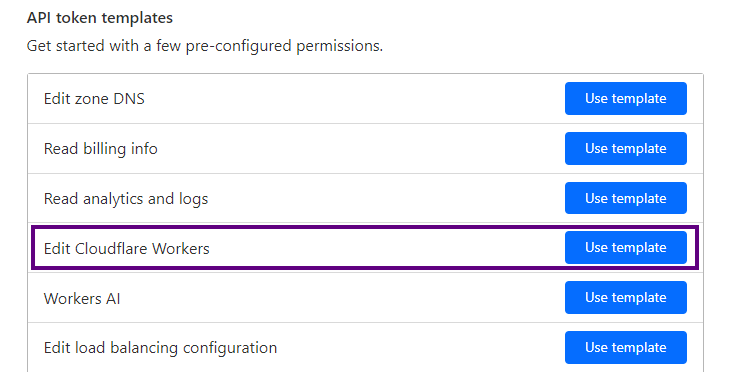
💡 This template includes the exact permissions needed for llm-optimizer to deploy and manage Workers on your domain.
Step 2 – Generate and Copy the API Token
Follow the prompts to create the API token using the selected template.
Once created, copy the generated token.
Store it somewhere safe until you add it to Salespeak.
Step 3 – Add Your Token to Salespeak
In Salespeak, navigate to the Cloudflare Integration settings.
Paste your Cloudflare API Token into the provided field.
Enter your website domain (e.g.,
example.com).
✅ Your token will be securely stored and used exclusively for deploying Workers and managing caching rules on your domain.
Step 4 – Configure Monitored URL Patterns
Define the URL patterns you want monitored.
Salespeak will watch for LLM activity on these URLs and serve optimized pages when applicable.
Example:
https://example.com/blog/*
What Happens Behind the Scenes
Once connected:
Salespeak creates a Cloudflare Worker on your domain.
The Worker monitors LLM activity (e.g., AI agents crawling or interacting with your content).
If optimization rules are defined, Salespeak serves the optimized version of the page directly from the Worker—reducing latency and improving AI-specific user experience.
Security Notes
API tokens are scoped to only the permissions required.
Tokens are stored encrypted and never exposed in plain text after setup.